We are currently updating our documentation. Content may change during this period - we kindly ask for your patience.
For the complete documentation index, see llms.txt. This page is also available as Markdown.

Browser profiles overview

This section covers browser profile management and outlines the key actions you can take to manage your profiles effectively. You'll get familiar with the profiles screen features, learn how to edit profile settings, organize profiles using groups and tags, clone and transfer profiles, enable or restore them, create profiles in bulk, and keep them synced across your workspace.

What is a browser profile?

A browser profile is an isolated browser environment with its own fingerprint, cookies, proxy, and settings. Each profile behaves like a completely separate browser, which means websites can't link activity between them. You can create as many profiles as your plan allows and manage them all from the profile list.

If you haven't set one up yet, see launch your first browser profile.

The profiles screen

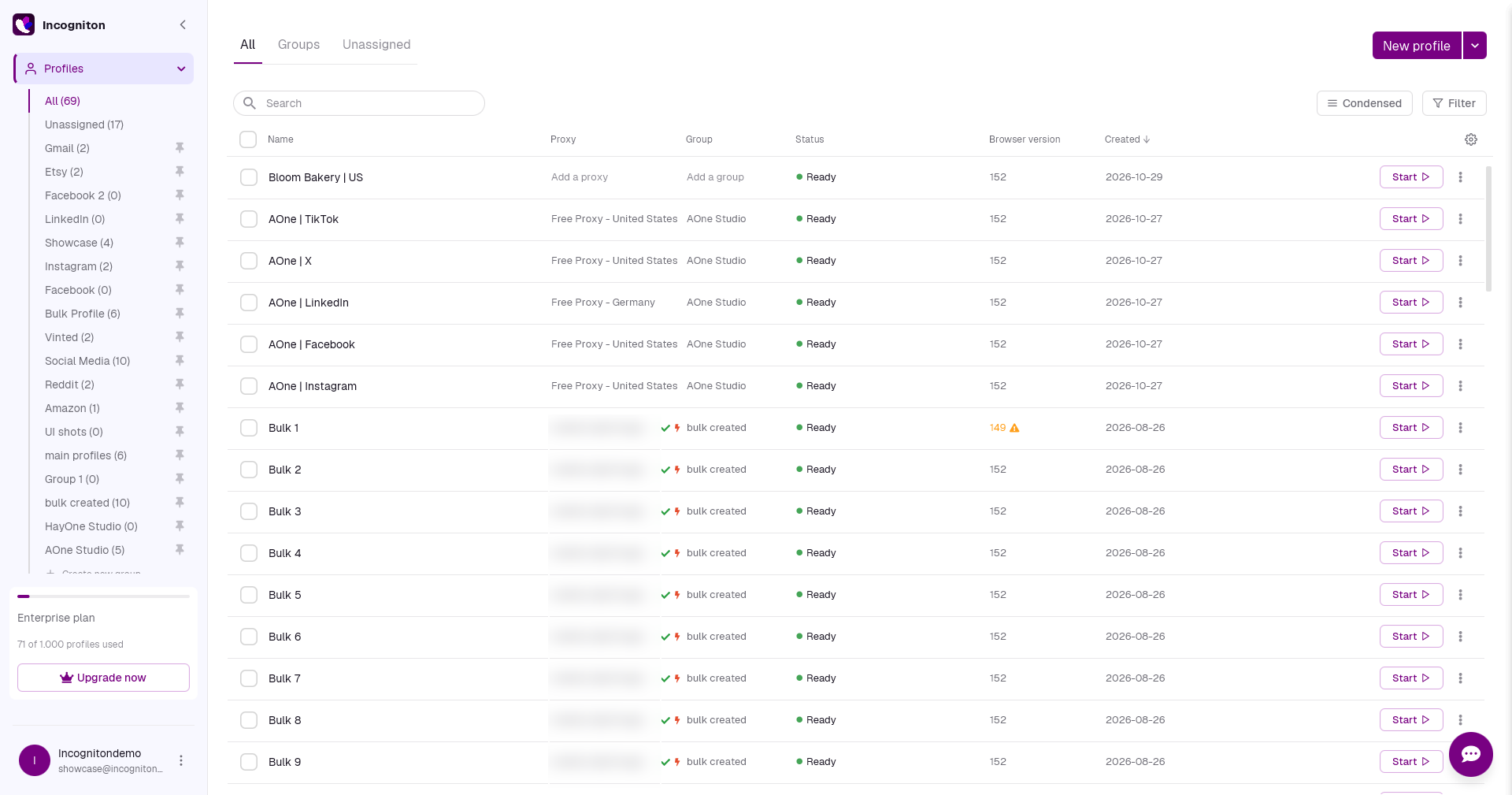
When you open Incogniton, you land on the profile list. Each row is a profile.

By default, the list shows each profile's name, proxy, tags, status, OS, group, and created date. You can adjust which columns appear and how they're ordered. The Customise your view section covers that later on this page.

Profile status

The status column tells you what a profile is currently doing. Use it to check if a profile is available before launching.

Status
What it means

Ready ๐ŸŸข

The profile is idle and available to launch.

Launching ๐ŸŸ 

The profile is in the process of opening.

Launched ๐ŸŸฃ

The profile is currently running.

Stopping ๐ŸŸ 

The profile is in the process of closing.

Syncing ๐Ÿ”ต

The profile is syncing data with the cloud.

Browser version indicators

The browser version column helps you identify profiles running outdated browser versions. The indicator colour reflects how far behind the current version the profile is.

Color
What it means

Yellow

The version is slightly outdated.

Orange

The version is moderately outdated.

Browser versions naturally become outdated over time. The yellow and orange indicators help you identify profiles that are falling behind current browser releases and may be ready for an update.

Customization

Incogniton lets you tailor the profile list to your workflow by adjusting its layout and the information it displays.

A. Choose visible columns

You can choose which columns appear in the profile list and rearrange them to suit how you work.

  1. Click the gear icon at the top right of the column headers.

  2. In the Change columns panel, check or uncheck columns to show or hide them.

  3. Drag the handle next to any column to reorder it.

  4. Click Save.

Your column layout is saved and persists across sessions.

If your window is too narrow to display all selected columns, some columns may be hidden automatically until more space is available.

B. Condensed view

Condensed view reduces the row height in the profile list so you can see more profiles on screen at once. Click Condensed in the top right to toggle it on or off. It doesn't affect your profiles or their data.

C. Search and filter profiles

Use the search bar to find profiles by name or tag. Results update as you type, so searching for a tag name returns all profiles with that tag applied alongside any profiles whose names match the same keyword.

For more precise lookups, click Filter to open the filter panel. You can narrow the list by date added, group, tag, and status. Select your criteria and click Save to apply. To clear the filters, reopen the panel and deselect your selections.

D. Sorting profiles

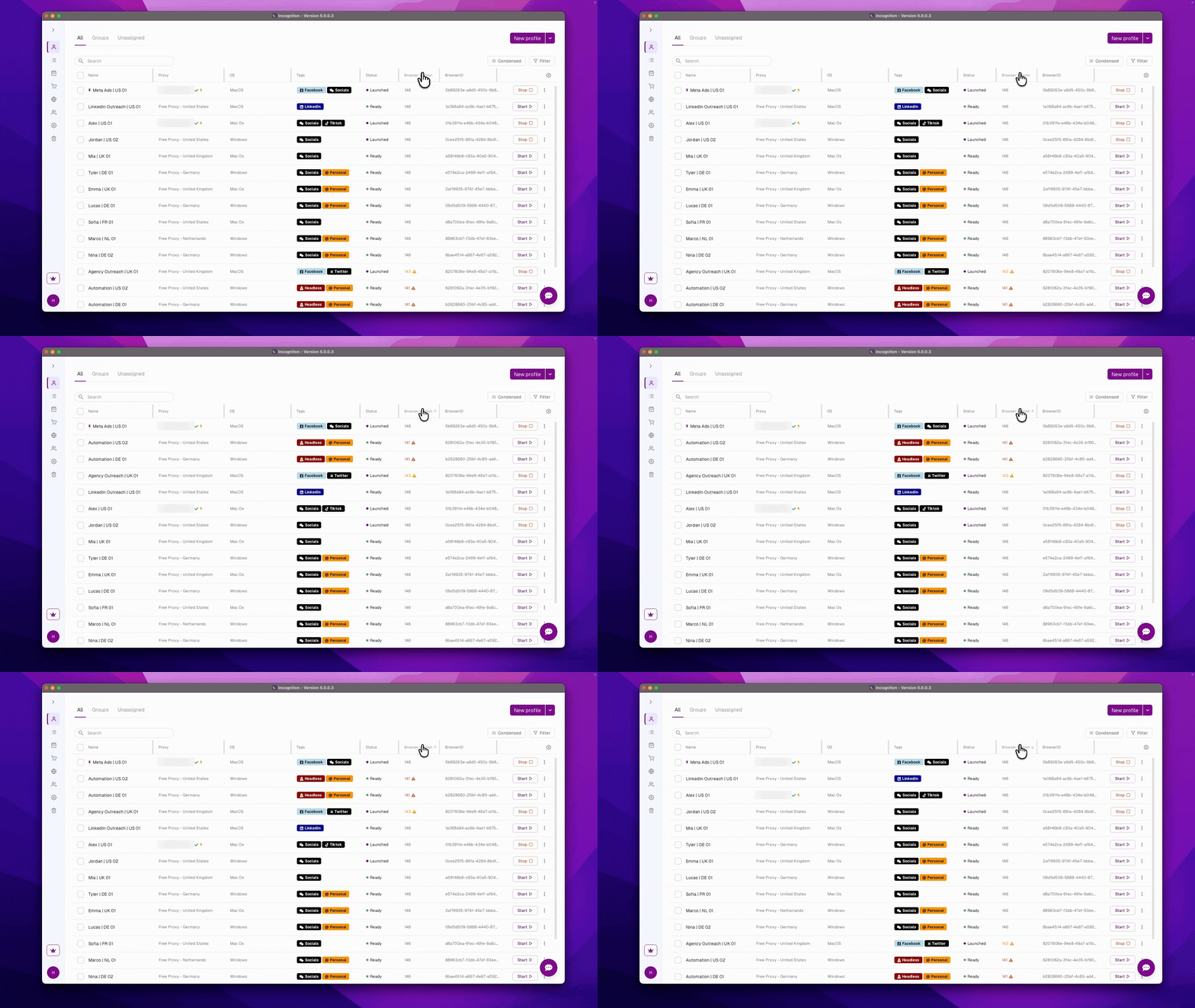
You can sort the profile list by any visible column. Click a column header to sort by that column, then click it again to reverse the order. The active sort column is marked with an arrow indicating the current sort direction.

Sorting applies to all profiles except pinned ones. Pinned profiles always stay at the top of the list regardless of the sort order.

Last updated

Was this helpful?