> For the complete documentation index, see [llms.txt](https://docs.incogniton.com/llms.txt). Markdown versions of documentation pages are available by appending `.md` to page URLs; this page is available as [Markdown](https://docs.incogniton.com/extra-features/passing-the-iphey-test.md).
# Passing the Iphey test
Passing the Iphey reliability test in Incogniton
In this guide we will explain how you can pass the [Iphey](https://iphey.com/) reliability test with Incogniton.
{% stepper %}
{% step %}
### Create a browser profile and activate iphey check option
Create a browser profile and attach a proxy (if desired). Go to the tab **Advanced > Other** and toggle on the button **Try to pass iphey check**.
{% hint style="warning" %}
Enabling this option forces Incogniton to **disable or change certain features** to help pass the iphey.com legitimacy check. One of the features that will be disabled is canvas spoofing, which may make your canvas fingerprint more easily identifiable.
{% endhint %}
{% hint style="warning" %}
This setting must be activated before the first time the profile is launched to consistently pass the check. It might not work if the profile is used on both Windows and Mac.
{% endhint %}
{% endstep %}
{% step %}
### Launch the profile and check iphey
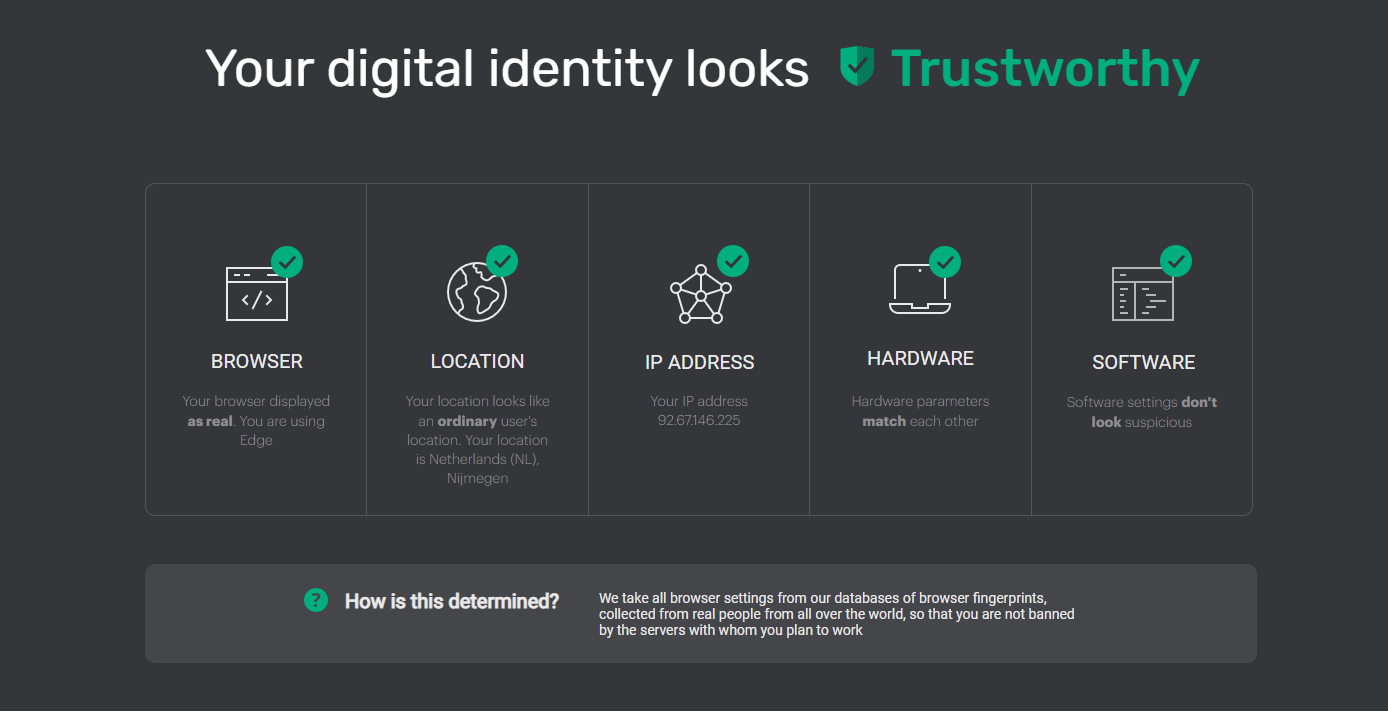
Launch the browser profile and go to [Iphey](https://iphey.com/). You should see that Incogniton passes the test.
{% hint style="info" %}
In some cases you may need to refresh the page twice before it passes the test.
{% endhint %}
{% endstep %}
{% endstepper %}
{% hint style="info" %}
If you still have any questions, please don’t hesitate to contact our [support department](https://incogniton.com/contact/).
{% endhint %}