> For the complete documentation index, see [llms.txt](https://docs.incogniton.com/llms.txt). Markdown versions of documentation pages are available by appending `.md` to page URLs; this page is available as [Markdown](https://docs.incogniton.com/general-questions/troubleshooting/metamask-extension-not-working-virus-report.md).
# Metamask Extension not working / virus report
Learn what to do when Metamask Extension is not working
You are facing issues with Windows Defender blocking the Metamask extension on your Incogniton browser. Windows Defender, as an antivirus software, sometimes detects certain files of Metamask as potential threats, which can prevent the extension from functioning properly. To solve this, follow the steps below.
{% stepper %}
{% step %}
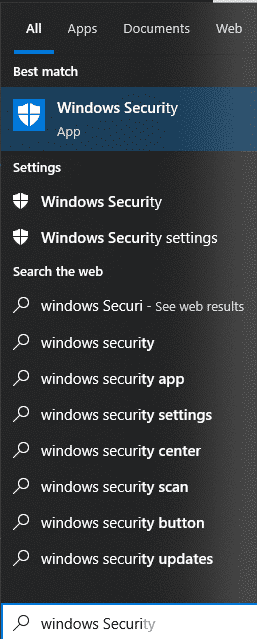
### Open Windows Security
Start by opening Windows Security on your device. You can usually find it in the Windows Security settings or by searching for **Windows Security** in the search bar.
{% endstep %}
{% step %}
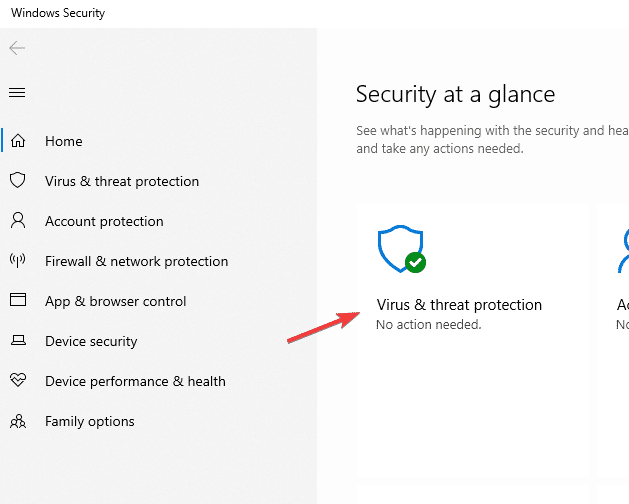
### Go to Virus & Threat Protection
Once you have Windows Security open, look for the **Virus & Threat Protection** section. This is where you can manage the antivirus settings on your device.
{% endstep %}
{% step %}
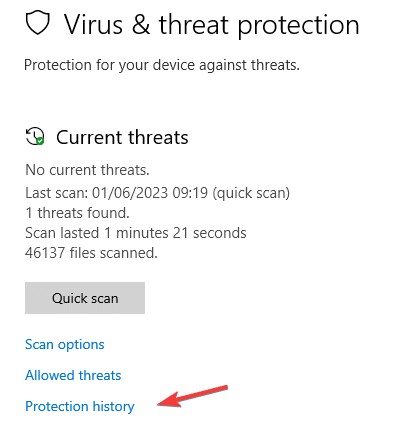
### Open Protection History
Locate the option for **Protection History** (or a similarly named option). This will display a log of recent events and actions taken by Windows Defender.
{% endstep %}
{% step %}
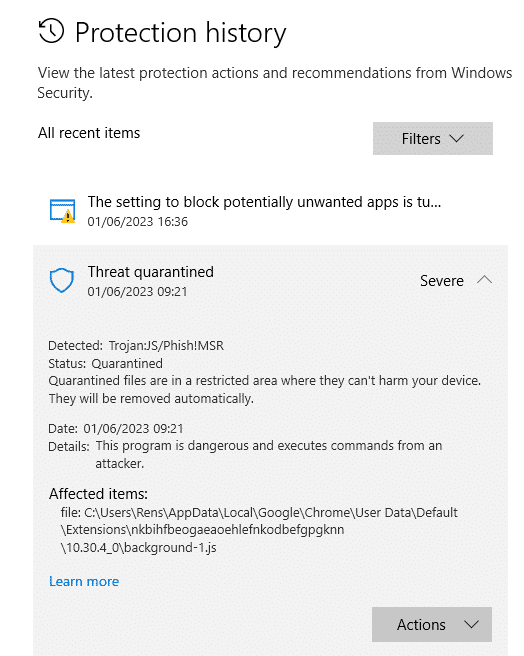
### Search for Metamask-related Events
Search the Protection History for any events or notifications related to Metamask. Windows Defender may have flagged and removed certain files associated with Metamask, causing it to malfunction.
{% endstep %}
{% step %}
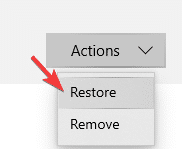
### Restore or Allow Blocked Files
If you find events indicating the removal or blocking of Metamask files, restore or allow those files from the Protection History log. This action will whitelist the Metamask extension and prevent Windows Defender from blocking it in the future.
{% endstep %}
{% step %}
### Reinstall Metamask
After restoring or allowing the blocked files, reinstall the Metamask extension to ensure all necessary components are present and functioning correctly. Reinstall Metamask from the official Chrome Web Store or the respective extension store of your browser.
{% endstep %}
{% endstepper %}
{% hint style="info" %}
If you still have any questions, contact our [support department](https://incogniton.com/contact/).
{% endhint %}